
Sound Effects
Sound Effects (SFX) let you inject custom audio cues directly into your text-to-speech messages. By wrapping your custom tag in brackets (e.g. [wow]), the JakeyTTS engine will pause the voice speech, play the mapped audio file, and then resume speaking. This is perfect for viewer interaction, jump scares, memes, or highlights during your stream.
1. How Sound Effects Work
When a chat message or redeem template contains a registered SFX tag:
- The TTS engine processes the text block sequentially.
- It detects the bracketed tag
[tagname]. - It temporarily pauses the spoken narration.
- It plays the associated audio file immediately.
- It resumes reading the rest of the text.
For example, sending:
"Hello! [airhorn] That was a massive play!"
will speak “Hello!”, play the airhorn sound effect, and then speak “That was a massive play!”.
2. The Sound Effects Manager
All sound effects are managed from the Sound Effects page on the left sidebar.
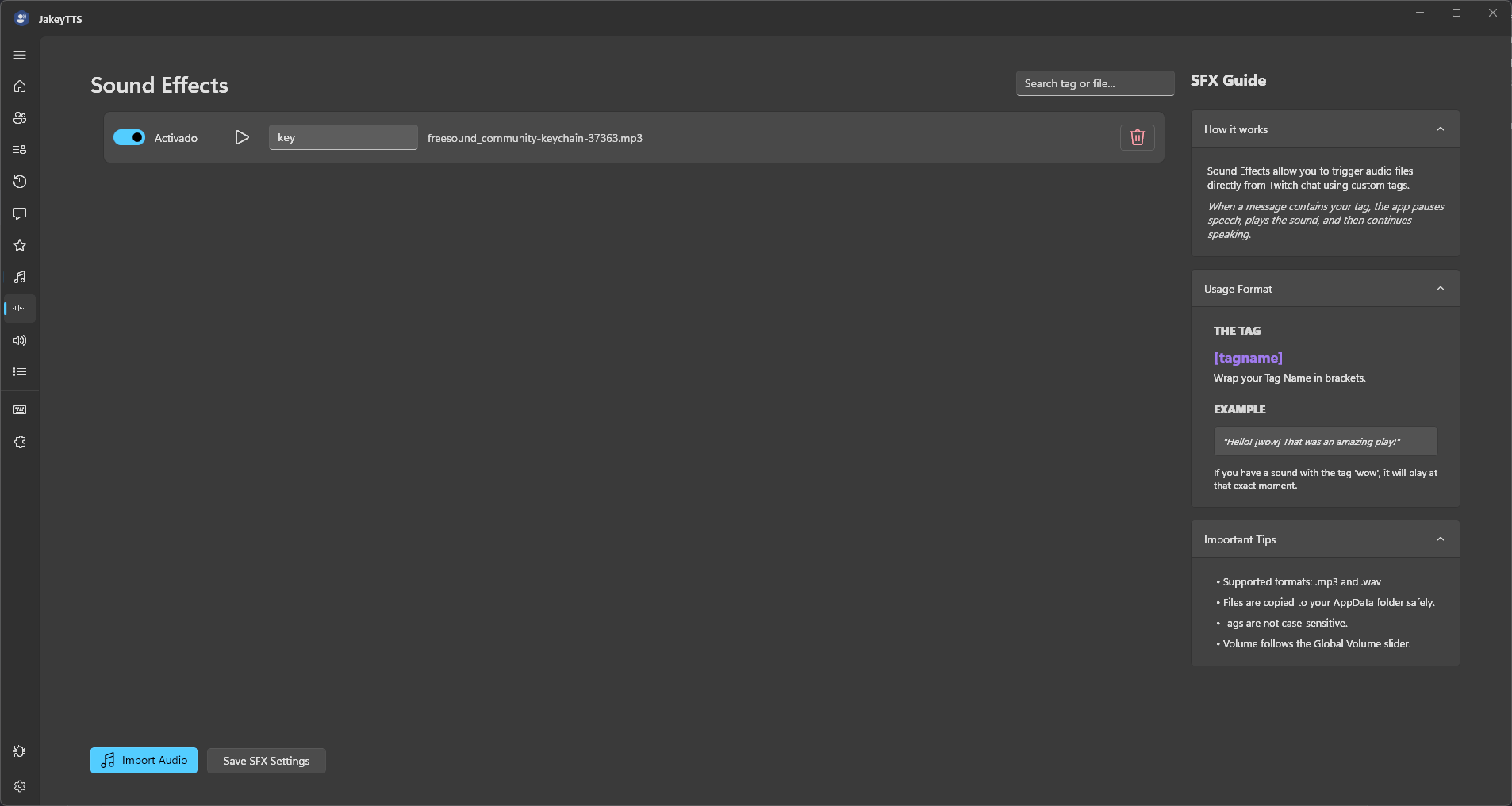 (The Sound Effects control panel displaying active tags, file bindings, and the usage guide.)
Dashboard Options & Fields
- IsEnabled Toggle: Enable or disable individual sound effects. When disabled, the bracket tag will be skipped during text narration.
- Play Button (Preview): Click the play icon to hear a local preview of the sound effect through your primary output device.
- Tag Name Input: Double-click or select the tag name box to customize the bracket trigger (e.g. changing
belltoding). Tags are case-insensitive and should not contain spaces. - File Name: Displays the original filename of the imported audio file.
- Delete Button (Trash Icon): Click the red trash bin to remove the sound effect mapping from the application.
- Search Box: Type in the top-right search box to quickly filter sound effects by tag or filename.
3. Importing Audio Files
JakeyTTS handles audio file management automatically, copying your assets into a dedicated folder so you never lose them.
How to Import
- Navigate to the Sound Effects manager.
- Click the Import Audio button in the bottom-left.
- Select any
.mp3or.wavfile from your computer. - The file will be copied safely into the local application directory (
AppData/Local/JakeyTTS/sounds/). - A default tag name (derived from the filename, in lowercase without spaces) will be assigned.
- Click Save SFX Settings at the bottom to save your configuration.
4. Important Tips & Best Practices
- Supported Formats: Only
.mp3and.wavformats are supported. - Case Insensitivity: Tags are not case-sensitive. Triggering
[WOW],[Wow], or[wow]will play the same sound. - Global Volume Control: Sound effect volume is linked to the primary voice volume output, meaning they respect your main master volume settings in the client.
- Clean Tags: Keep tags short and unique so they are easy for viewers to write in Twitch chat.