
Backup & Restore
The Backup & Restore system allows you to export your entire JakeyTTS setup—including database configurations, mixed voice profiles, chat commands, custom rewards, imported sound effects, and melodies—into a single compressed .zip archive. This makes it easy to migrate your settings to a new computer, share configurations, or keep secure copies of your stream setup.
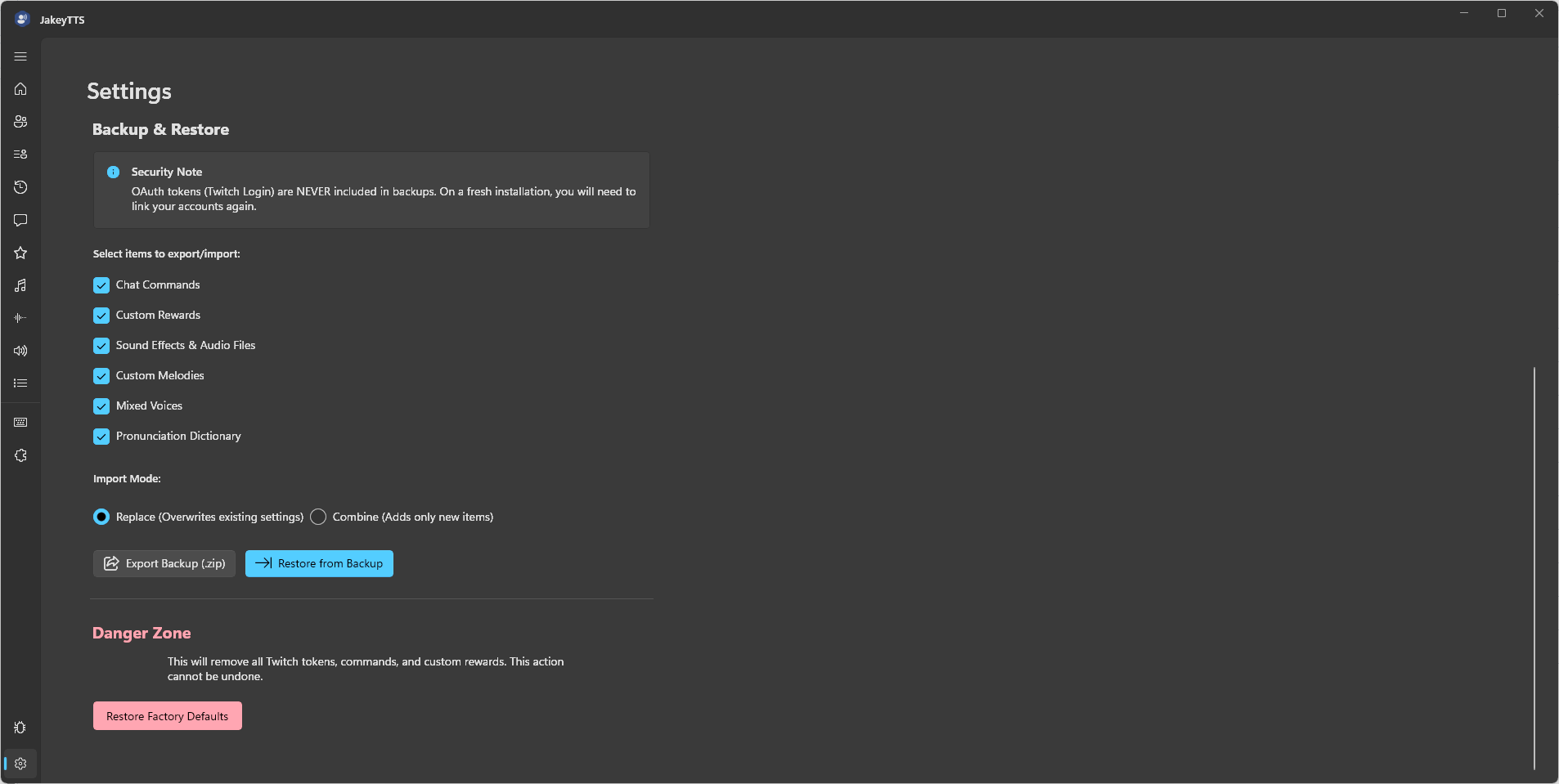 (The Backup & Restore interface showing customizable checkboxes for exports and imports.)
1. Exporting a Backup
To save your settings:
- Navigate to the Settings page in the sidebar.
- Locate the Backup & Restore section.
- Select which components you want to include in the backup archive using the checkboxes:
- Chat Commands: Saves your custom triggers and responses.
- Custom Rewards: Saves custom redeem-to-speech actions.
- Sound Effects & Audio Files: Saves configurations and copies all audio files from your local directory.
- Custom Melodies: Saves custom melody curves.
- Mixed Voices: Saves hybrid voice combination formulas.
- Pronunciation Dictionary: Saves word replacement rules.
- Click Export Backup (.zip).
- Select the destination folder and name your backup (defaults to
JakeyTTS_Backup_YYYYMMDD.zip).
[!WARNING] Twitch Login Security: For security reasons, your personal Twitch connection tokens (OAuth keys) are NEVER included in backup files. When importing a backup on a new computer, you will need to re-link your Twitch account on the Home/Connection screen.
2. Restoring a Backup
When restoring a backup archive, you can choose how the imported data should interact with your current setup:
Restore Modes
- Combine (Merge):
- Keeps your current local settings intact.
- Adds new items from the backup file only if they don’t already exist locally (checked by name/trigger/ID).
- Safely merges custom melody and sound files.
- Restore (Replace):
- Destructive action: Clears your current local list and deletes your local sounds and melodies folders.
- Replaces them entirely with the exact configurations and files from the backup.
How to Import
- Under the Backup & Restore section on the Settings page, select your desired Restore Mode (Combine or Replace).
- Check the components you want to restore.
- Click Restore from Backup and select your backup
.zipfile. - The client will extract, parse, verify, and apply your backup files automatically.
3. Storage Architecture
Under the hood, the backup engine interacts with the following paths inside your local environment:
- Main Configuration: Config lists are written back to
AppData/Local/JakeyTTS/config.json. - Sound Effects: Audio assets are unpacked and copied directly to the
AppData/Local/JakeyTTS/sounds/directory. - Melodies: Custom melody curves are unpacked and copied directly to the
AppData/Local/JakeyTTS/melodies/directory, and the client triggers an internal melody service refresh to update the active libraries.