
Advanced Action Blocks
By enabling Action Blocks (Advanced) on a command, you unlock the ability to execute sequential actions, evaluate conditional logic, update variables, and introduce delays.
1. Enabling Action Blocks & Randomizer
To upgrade a command, check the Enable Action Blocks (Advanced) toggle on the command panel:
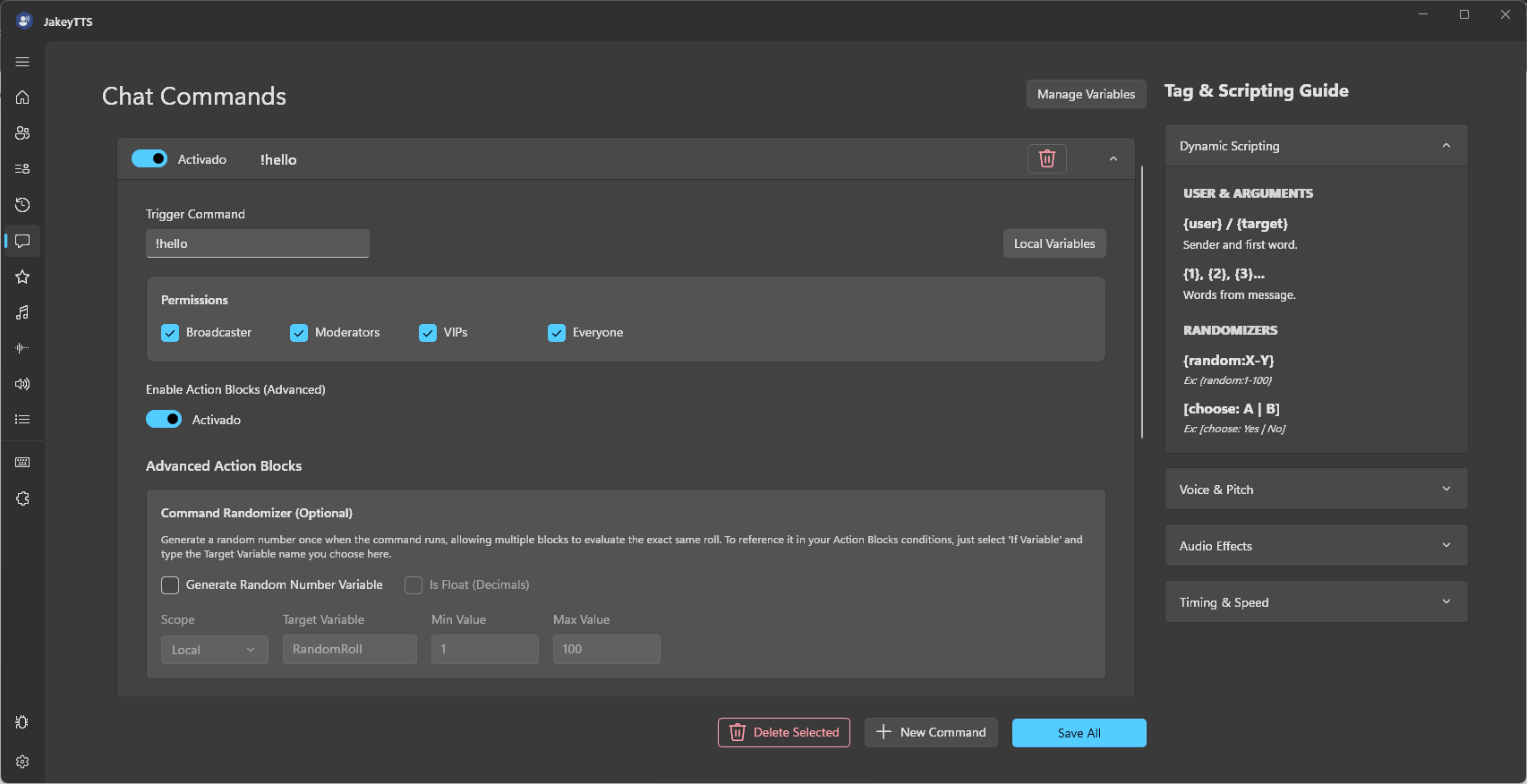 (Activating action blocks and setting up the Command Randomizer.)
- Command Randomizer (Optional): Generates a random number once when the command is triggered. Multiple blocks can then evaluate their conditions against the exact same roll (e.g. for games, level rolls, or random chance systems).
- Generate Random Number Variable: Check to enable.
- Scope: Select
LocalorGlobal. - Target Variable: Name of the variable to store the roll (e.g.
RandomRoll). - Min / Max Value: Define the boundaries of the roll.
- Is Float (Decimals): Check to allow fractional random numbers.
2. Action Blocks Workflow
An Action Block executes a defined response action when its condition evaluates to true. You can chain multiple blocks together.
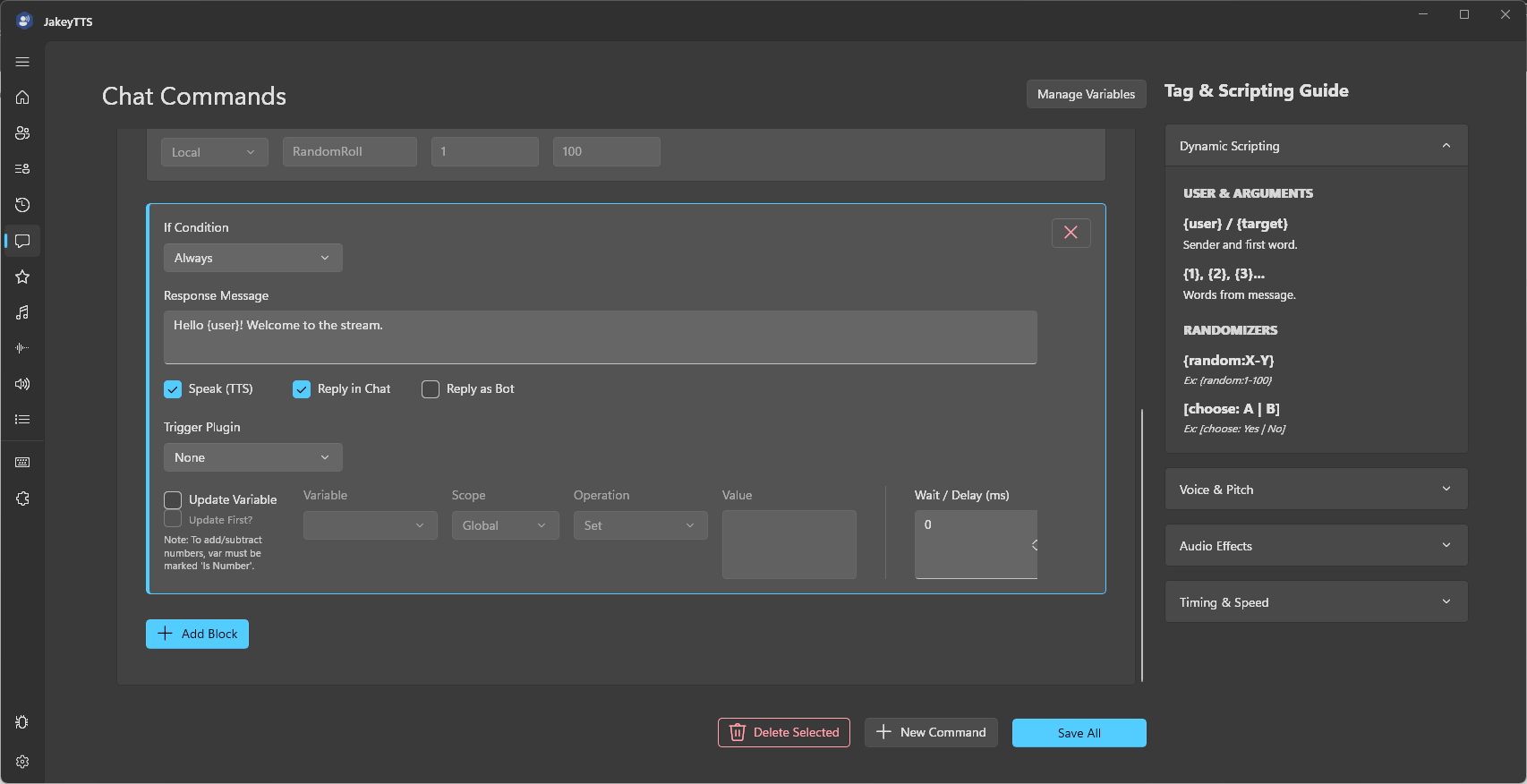 (Action block panel showing condition dropdowns, variable updates, and delay timers.)
- Delete Block: Click the red
Xin the top-right corner of the block to delete it. - Add Block: Click the
+ Add Blockbutton at the bottom to append a new block to the sequence. - Wait / Delay (ms): Add a delay (in milliseconds) before this block executes. Useful for pausing TTS actions.
3. Block Conditions (If Condition)
Each block has an If Condition dropdown which controls whether the block is executed:
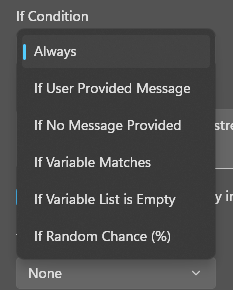 (Dropdown showing the available conditional rules for action blocks.)
- Always: The block always executes.
- If User Provided Message: Runs only if the viewer typed text after the trigger command (e.g.,
!command hello). - If No Message Provided: Runs only if the viewer triggered the command without any additional message.
- If Variable Matches: Evaluates the block only if a variable matches a comparison check.
- If Variable List is Empty: Runs only if a list contains zero items.
- If Random Chance (%): Triggers the block based on a percentage probability.
4. If Variable Matches Configuration
When selecting If Variable Matches, additional comparison fields appear:
 (Configuring variable matches with scope, operator, and value checks.)
Scope: Select
LocalorGlobal.Variable Name: Select the variable to compare.
Operator: Define the comparison rule:
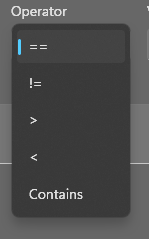 (Available comparison operators: equals, not equals, greater than, less than, or contains.)
==: Equals!=: Does not equal>: Greater than (requires variable to be marked “Is Number”)<: Less than (requires variable to be marked “Is Number”)Contains: Checks if a string or list contains the specified value.
Value: The target value to check.
5. Updating Variables
Action blocks can dynamically update variables. Check the Update Variable box inside a block to configure changes:
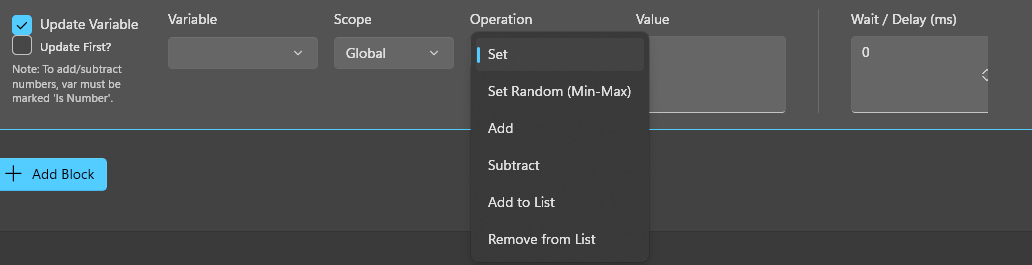 (Configuring variable updates with scoping and operations.)
- Update First?: If checked, the variable is updated before the Response Message is spoken/sent. If unchecked, the update runs after.
- Operation Dropdown: Choose how to update the variable:
- Set: Overwrite the variable with a static string or number.
- Set Random (Min-Max): Assign a random number within the specified range.
- Add / Subtract: Increase or decrease a numerical variable (requires “Is Number” checked).
- Add to List / Remove from List: Add or remove items from a list array.
- Value: The value or range used for the operation.