
Standard Commands & Variables
Standard commands allow you to set up basic triggers for chat messages (e.g. !hello or !tts) and respond with custom text-to-speech narrations, chat messages, or plugin triggers.
1. Chat Commands Dashboard
All chat commands are managed from the main Chat Commands page.
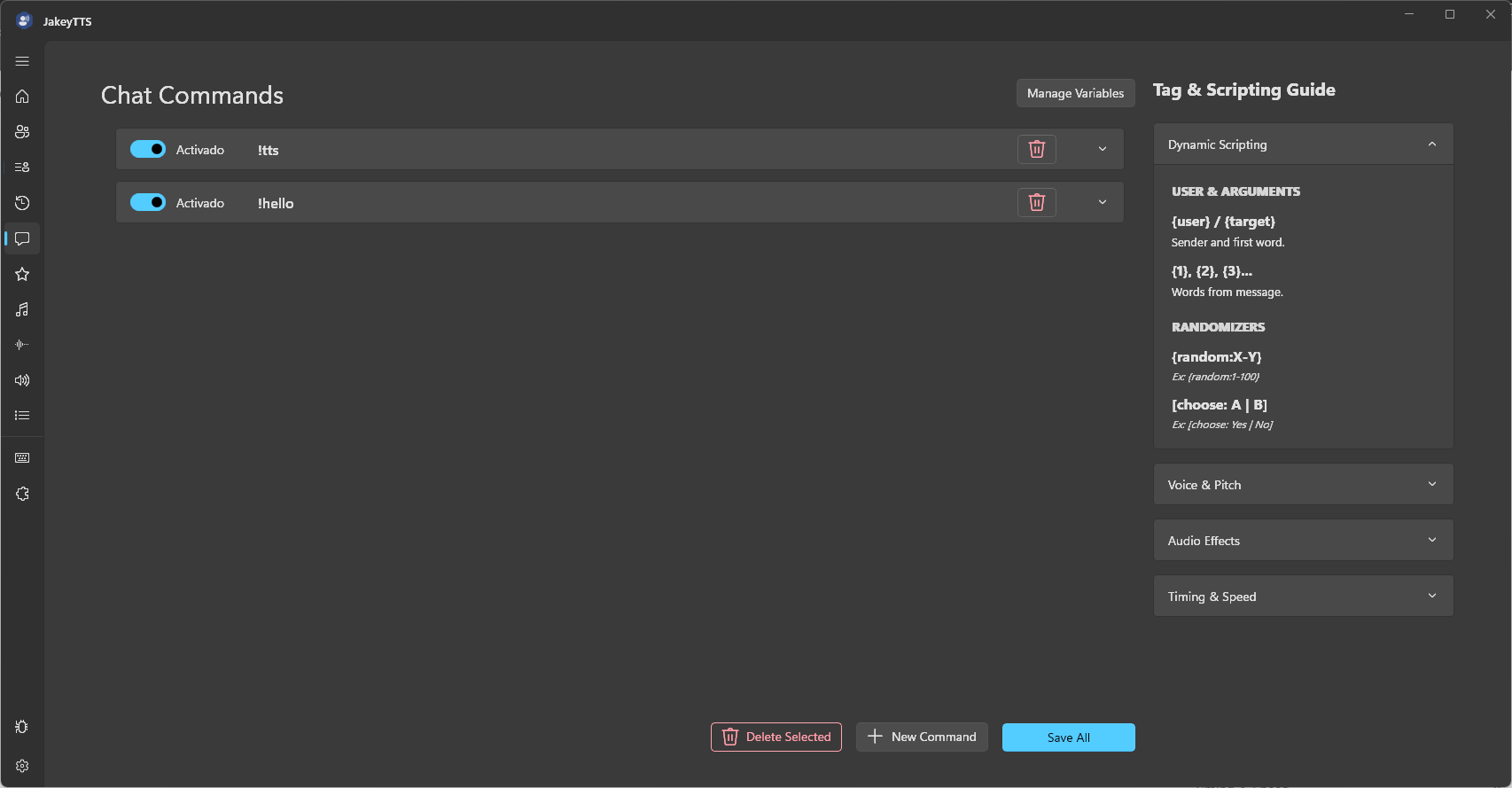 (The Chat Commands control center listing active triggers and scripting guides.)
- Add / Delete Commands: Click the New Command button at the bottom to add a trigger. Delete triggers using the red trash bin icon or by clicking Delete Selected.
- Toggle Switch (Activado): Enable or disable individual commands instantly.
- Manage Variables: Click the button at the top-right to edit global and local variables.
- Save All: Click the blue button at the bottom to apply changes.
2. Standard Command Configuration
Click the dropdown arrow (v) on any command card to expand its settings:
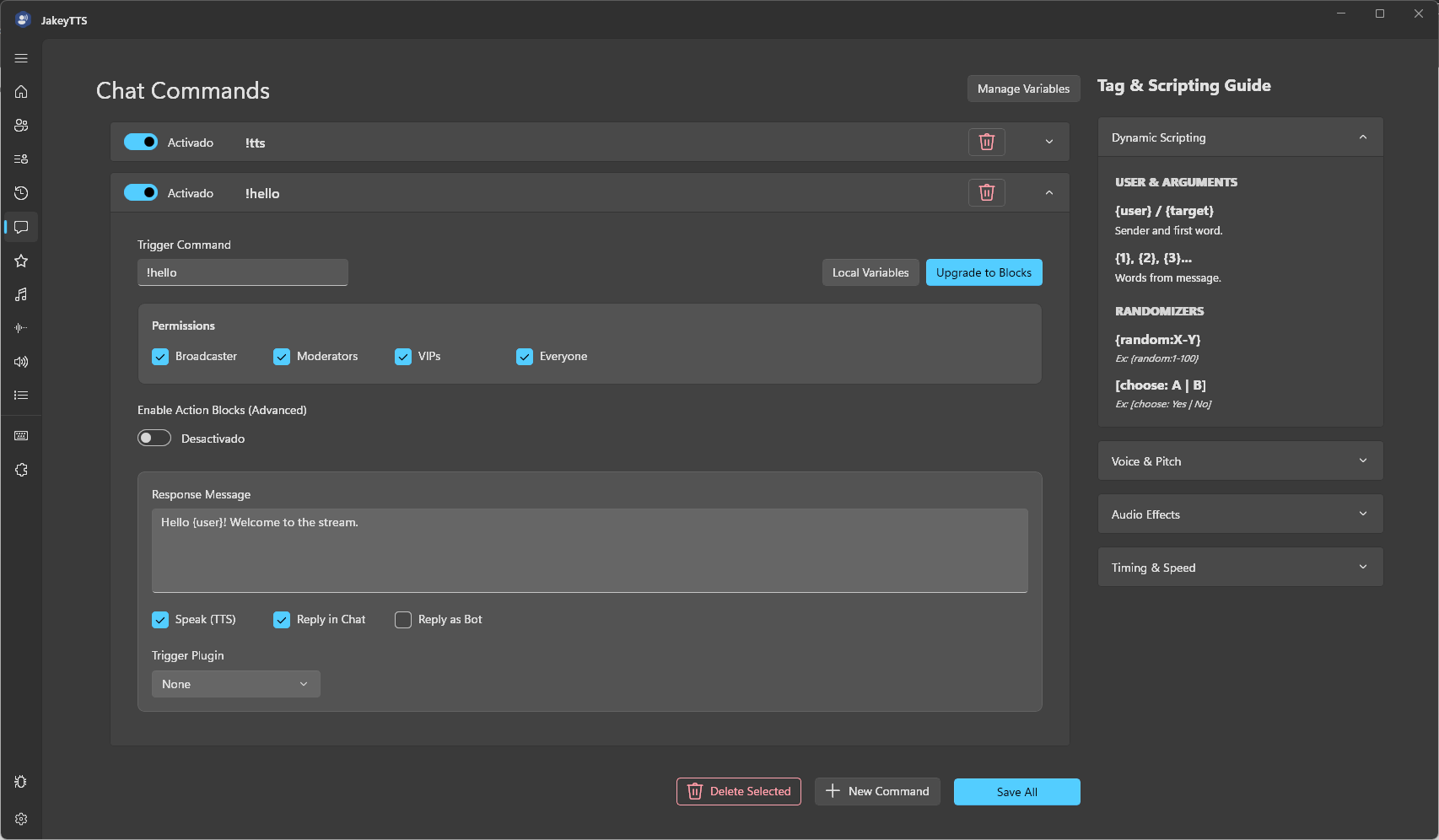 (Expanded view of a basic command showing permissions and response messages.)
Fields & Controls:
- Trigger Command: The chat trigger phrase (e.g.,
!hello). - Upgrade to Blocks: Upgrades this specific command to use the advanced action block system.
- Permissions: Select who can trigger the command by checking/unchecking:
- Broadcaster
- Moderators
- VIPs
- Everyone
- Response Message: The text template to be processed. You can insert dynamic variables here (e.g.,
Hello {user}! Welcome to the stream.). - Action Checkboxes:
- Speak (TTS): Speaks the response message through the primary output audio device.
- Reply in Chat: Sends the response text back to the Twitch chat.
- Reply as Bot: Sends the response using the linked bot account instead of the broadcaster account.
- Trigger Plugin: Link this command to execute actions in an active plugin (e.g. Discord Voice Bridge).
3. Variable Management
Click the Manage Variables button on the dashboard to open the variable configuration modal.
Scalars (Numbers/Text)
Scalar variables store individual strings or numbers in memory:
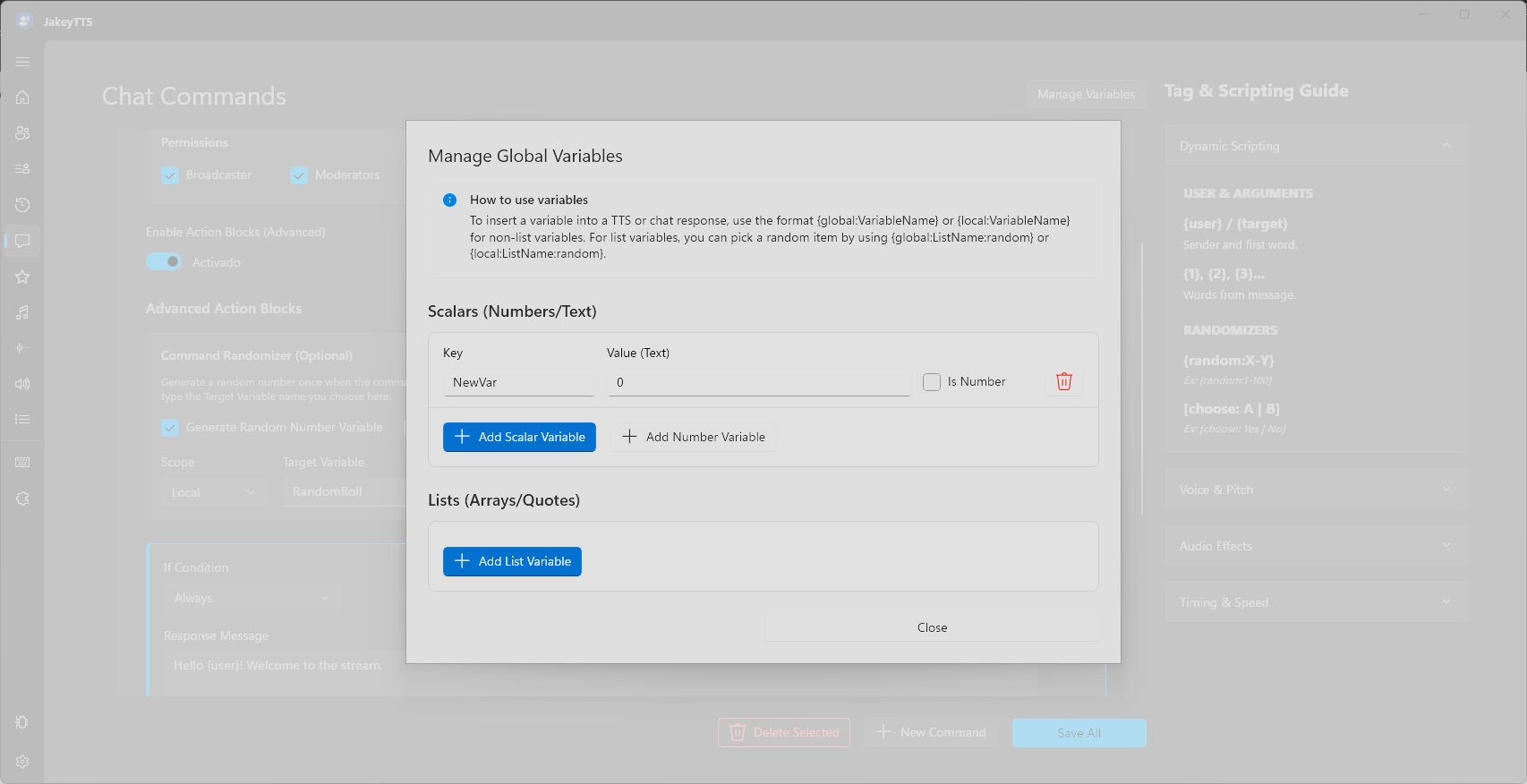 (Manage Global Variables modal displaying scalar variable keys and settings.)
- How to Reference: Reference scalars anywhere inside response templates using
{global:VariableName}or{local:VariableName}. - Is Number Checkbox: Mark the variable as a number to enable arithmetic operations (addition/subtraction) in action blocks.
Lists (Arrays/Quotes)
List variables store collections of strings, perfect for random quotes, jokes, or custom pools:
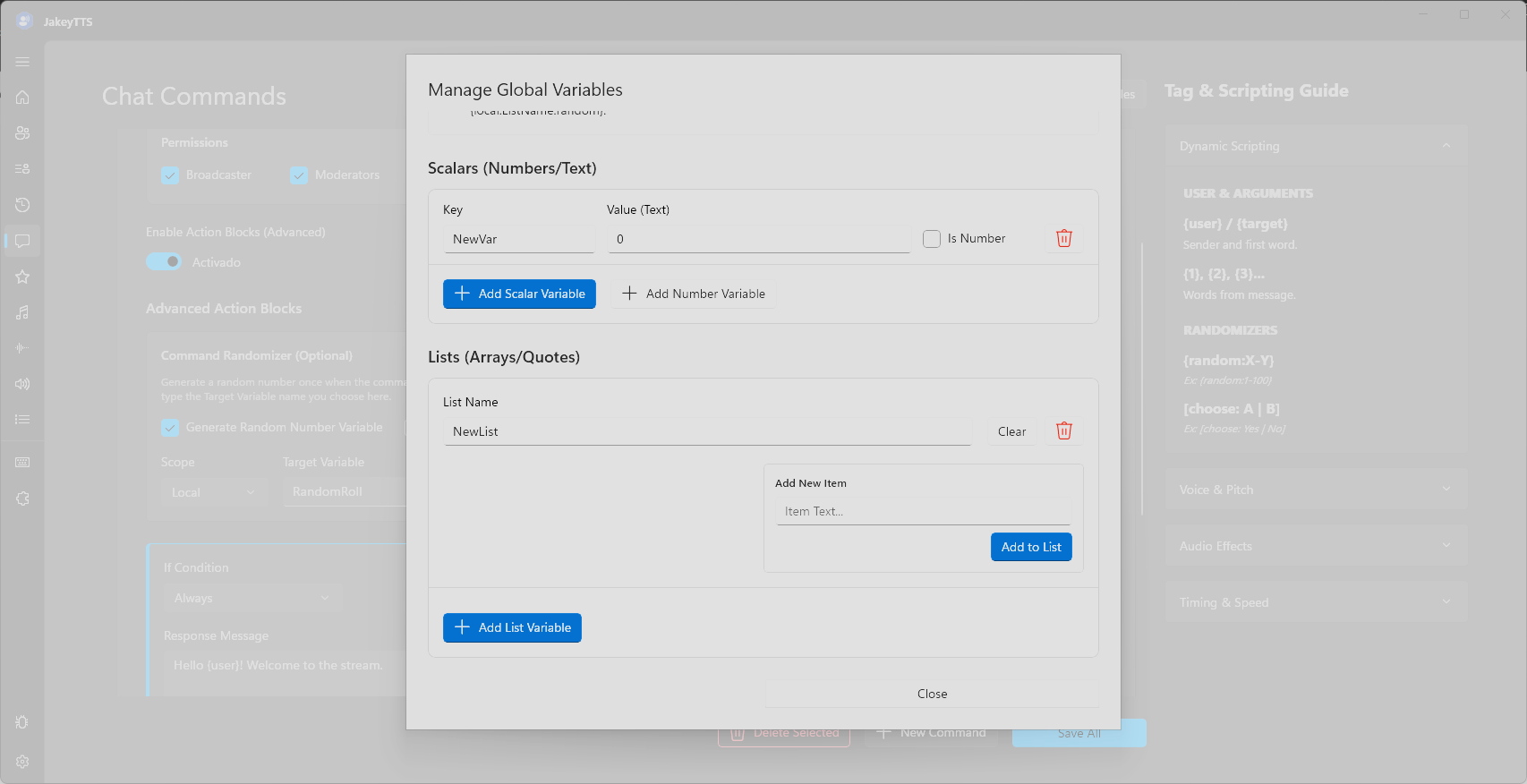 (Variables manager with list arrays configuration showing item inputs.)
- Adding Items: Type your text in the Add New Item box and click Add to List.
- How to Reference: Pick a random item from a list using
{global:ListName:random}or{local:ListName:random}.