
Install
Follow this detailed step-by-step guide to install JakeyTTS on your computer. The client is distributed as a lightweight native Windows installer that automatically deploys the application files and organizes your user configuration directories.
Step 1: Handling Windows SmartScreen
Because JakeyTTS is an open-source, newly released executable, Windows Defender SmartScreen may display a warning flag when you first launch the installer.
| 1. Initial Warning | 2. Accepting the Run |
|---|---|
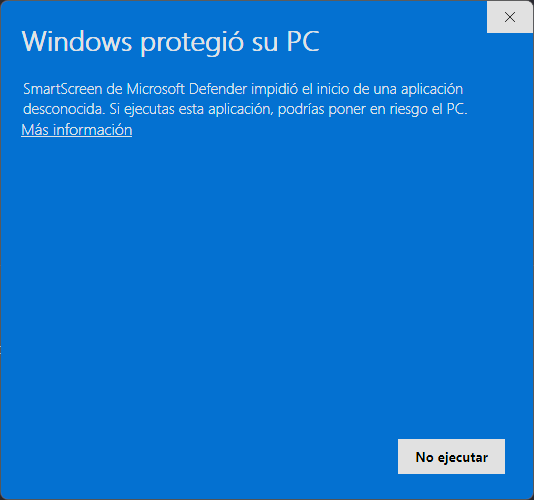 | 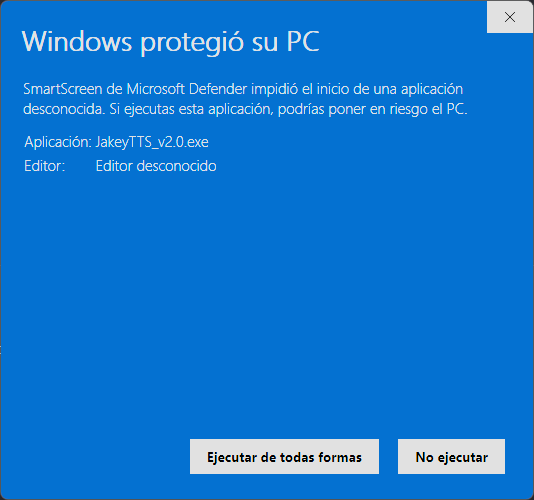 |
| Clicking “More info” to expand details. | Clicking “Run anyway” to proceed. |
- Run the downloaded
JakeyTTS_v2.1.0.exeinstaller. - If the “Windows protected your PC” blue prompt appears, click the “More info” link under the main description text.
- The prompt will expand to show the application metadata and reveal a “Run anyway” button in the bottom right corner. Click it to launch the setup program.
Step 2: Choosing Setup Mode & Scope
Once the installer launches, you must select the installation scope for the application:
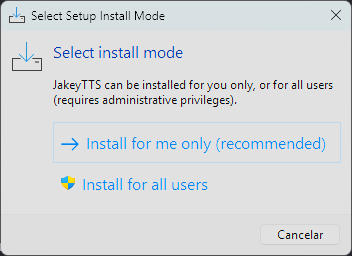 (Selecting user scope permissions for the installation.)
- Install for me only (Recommended): Deploys files into your local user folder. This does not require administrator privileges and keeps settings isolated to your profile.
- Install for all users: Installs the client globally on the machine. This requires Windows administrator permissions but allows any user profile on the PC to run the client.
Step 3: Installation Folder & Steps
The wizard will guide you through the setup stages to copy files onto your system:
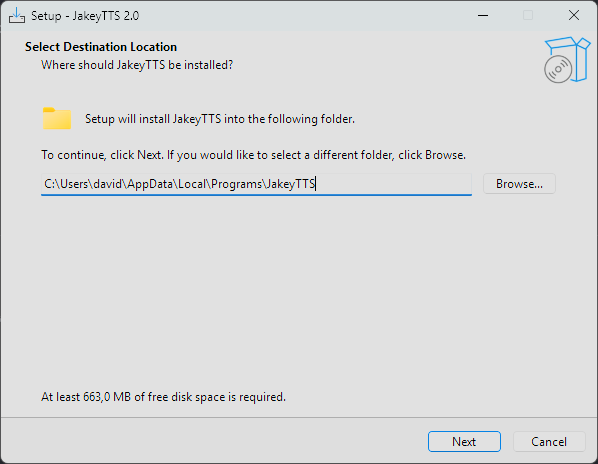
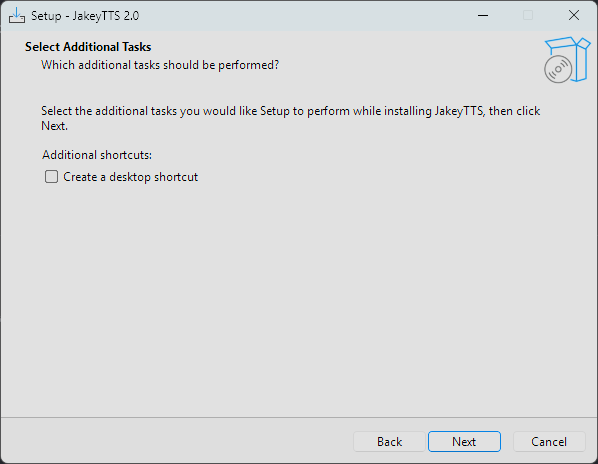
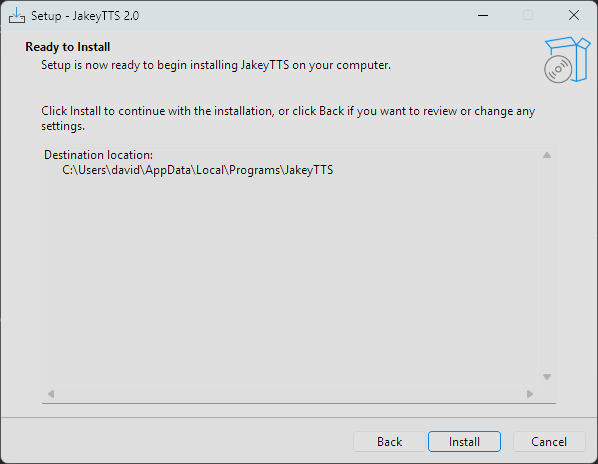
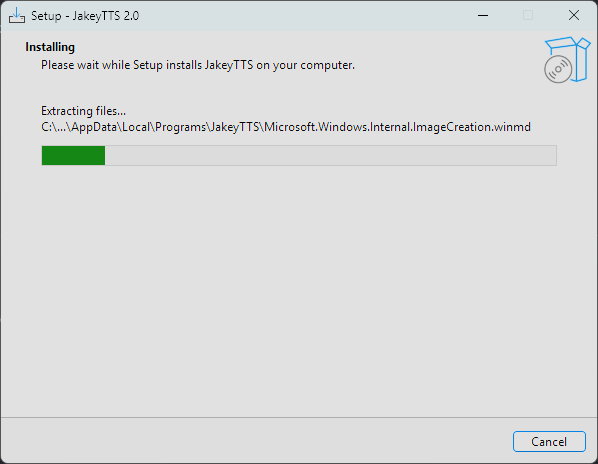
- Destination Location (
Step 1): Choose the directory path where the program files should be stored. By default, it will suggest a subfolder inside your localAppDatadirectory orProgram Files. - Ready to Install (
Step 2): Review your chosen directories and settings, then click Install to start copying files. - Extracting Program Assets (
Step 3&Step 4): The installer copies the core executables, local database definitions, pronunciation files, and initial voice files onto your hard drive.
Step 4: First Launch & Windows App SDK
Before starting the application, please read the following system runtime requirement:
[!IMPORTANT] Windows App SDK / WinUI Runtime Dependency: JakeyTTS is a modern, native desktop application built using Microsoft WinUI 3. When you run the application for the first time, Windows might detect if your operating system lacks the necessary runtime libraries and trigger the automatic installation of the Windows App SDK / WinUI 3 Runtime.
If you see a system prompt asking to download or install the Windows App SDK runtime, please approve and proceed with it. This runtime is officially provided by Microsoft and is required for native WinUI apps like JakeyTTS to initialize their graphical interfaces and window services correctly.
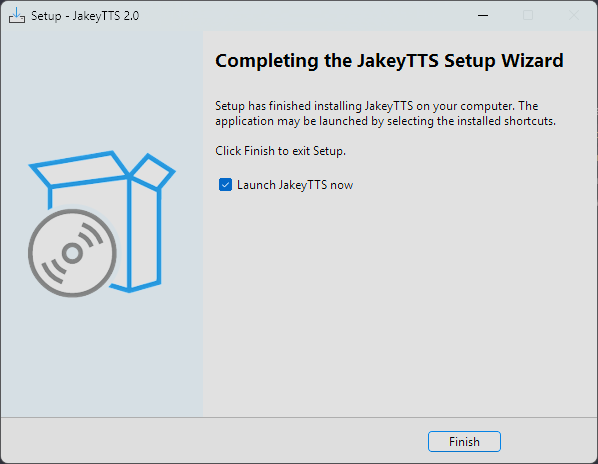 (The final setup window showing successful completion and the Launch option.)
Once the copy process completes, check the “Launch JakeyTTS” box and click Finish to close the wizard and launch the text-to-speech engine.