
Global Hotkeys
Global Hotkeys (Keybinds) allow you to map custom keyboard shortcuts to trigger essential client actions. Since these hotkeys are registered globally through the Windows system API, they will execute even when JakeyTTS is minimized, running in the system tray, or when you are focused on an active fullscreen game or streaming software.
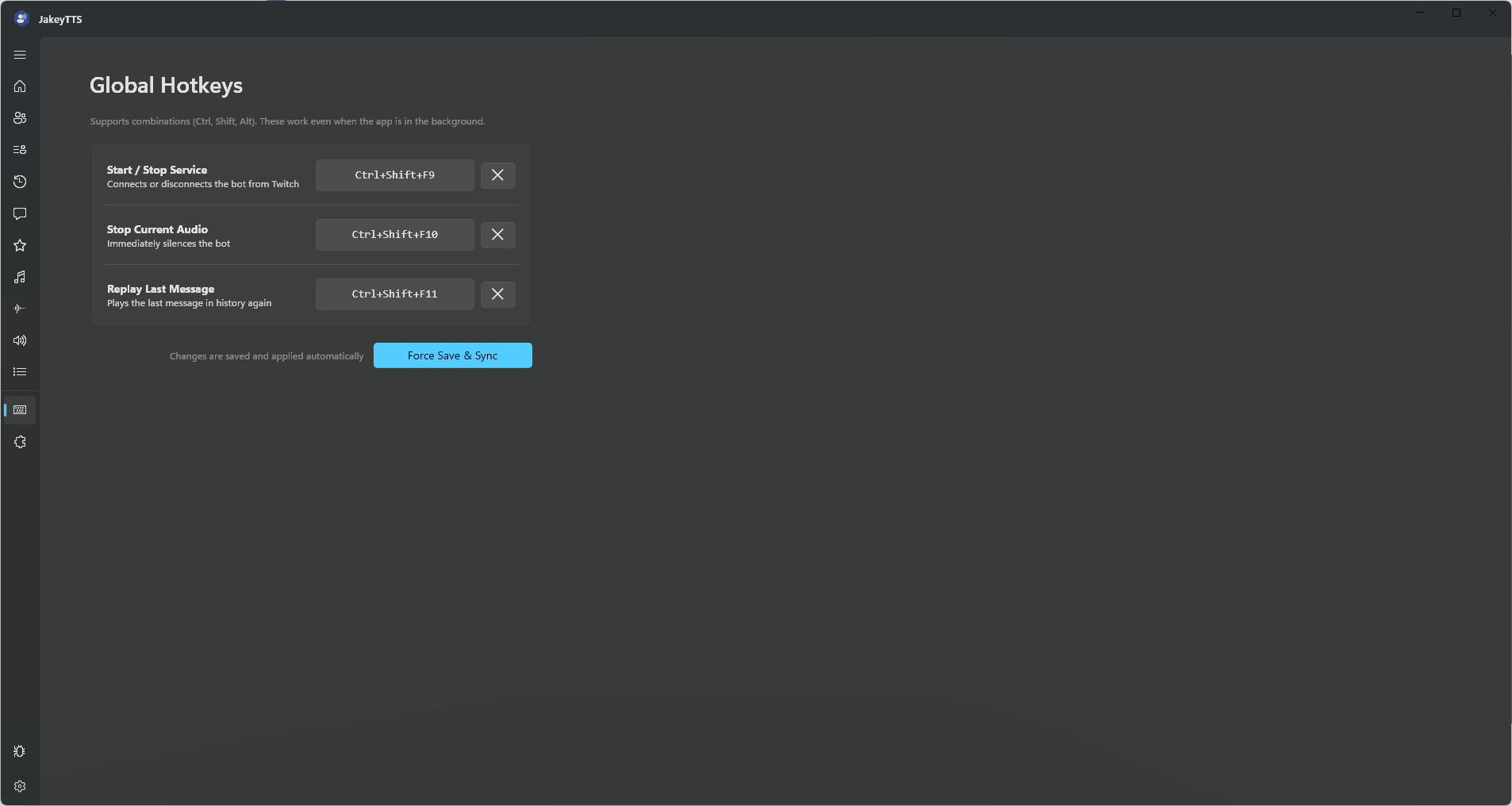 (The Global Hotkeys interface displaying registered key combination actions.)
1. Supported Hotkey Actions
Currently, JakeyTTS supports three global hotkey actions to keep you in control of your text-to-speech engine while streaming.
[!NOTE] To maintain a clean, lightweight system hook, only these three actions are available in the current version. More custom hotkey mapping options are planned for future updates.
| Action | Core Function | Default Keybind | Description |
|---|---|---|---|
| Toggle Connection | Connect / Disconnect Twitch | None | Starts or stops the Twitch chat connection. Useful if you need to pause all chat parsing instantly. |
| Stop Audio | Halt Narration & Clear Queue | None | Instantly stops the active voice output and empties the remaining audio queue if chat is spamming. |
| Replay Last | Replay History | None | Re-narrates the most recent chat message in the history queue. Perfect if you or your chat missed a voice reading. |
2. Recording a Keybind
Setting up a hotkey combination is simple:
- Open the Keybinds page from the sidebar navigation.
- Click the text box button next to the action you wish to configure (e.g., Stop Audio). The button text will change to “Listening…”.
- Press the desired key combination on your keyboard.
- Modifiers such as
Ctrl,Alt, andShiftcan be combined (e.g., pressingCtrl+Alt+S). - Once you release the keys, the button will display the recorded shortcut (e.g.,
Ctrl+Alt+S).
- Modifiers such as
- The keybind will register instantly and begin working in the background.
[!IMPORTANT] Choose key combinations that do not conflict with your main stream deck, overlay controls, or in-game actions, as global hotkeys intercept input across all active applications.
3. Clearing or Resetting Keybinds
If you want to disable an action’s shortcut:
- Click the Reset (Trash Icon) button next to the keybind slot.
- The registered shortcut will be reset to
Noneand unregistered from the system.
4. Technical Details & Storage
Under the hood:
- Storage Location: Keybind settings are saved in the primary JSON configuration file:
AppData/Local/JakeyTTS/config.json. - API Integration: Hotkeys are registered directly with the Windows OS using the
RegisterHotKeyWin32 API. This ensures zero latency and background capture. - Conflict Warning: If a chosen key combination is already registered by another application (like Discord or OBS Studio), the operating system may refuse the registration, and the hotkey will not fire. Try a different combination if this occurs.