
Melodies
Melodies allow you to dynamically adjust the pitch of the text-to-speech engine over the duration of the spoken text. By defining a custom pitch curve, you can make the TTS voice fluctuate, create robotic warbles, or introduce expressive pitch inflections.
1. What are Melodies?
A melody is a sequence of pitch control points defined over time. Instead of speaking at a flat, constant pitch, the JakeyTTS engine processes the length of the text and modulates the pitch in real-time based on the active melody graph:
- Time Percentage (0% to 100%): Represents the progression from the start to the end of the spoken message.
- Pitch Scale (0.5x to 2.0x): Adjusts how high or low the voice sounds relative to its base pitch (1.0x is default, 2.0x is double the pitch, 0.5x is half the pitch).
You can trigger these melodies dynamically inside Twitch redeems, custom commands, or chat alerts using the inline tag format:
[melody:MelodyName] (for example, [melody:Happy] Hello there!).
2. Managing Melodies
The Melodies dashboard lists all available melodies and allows you to toggle, preview, export, or delete them.
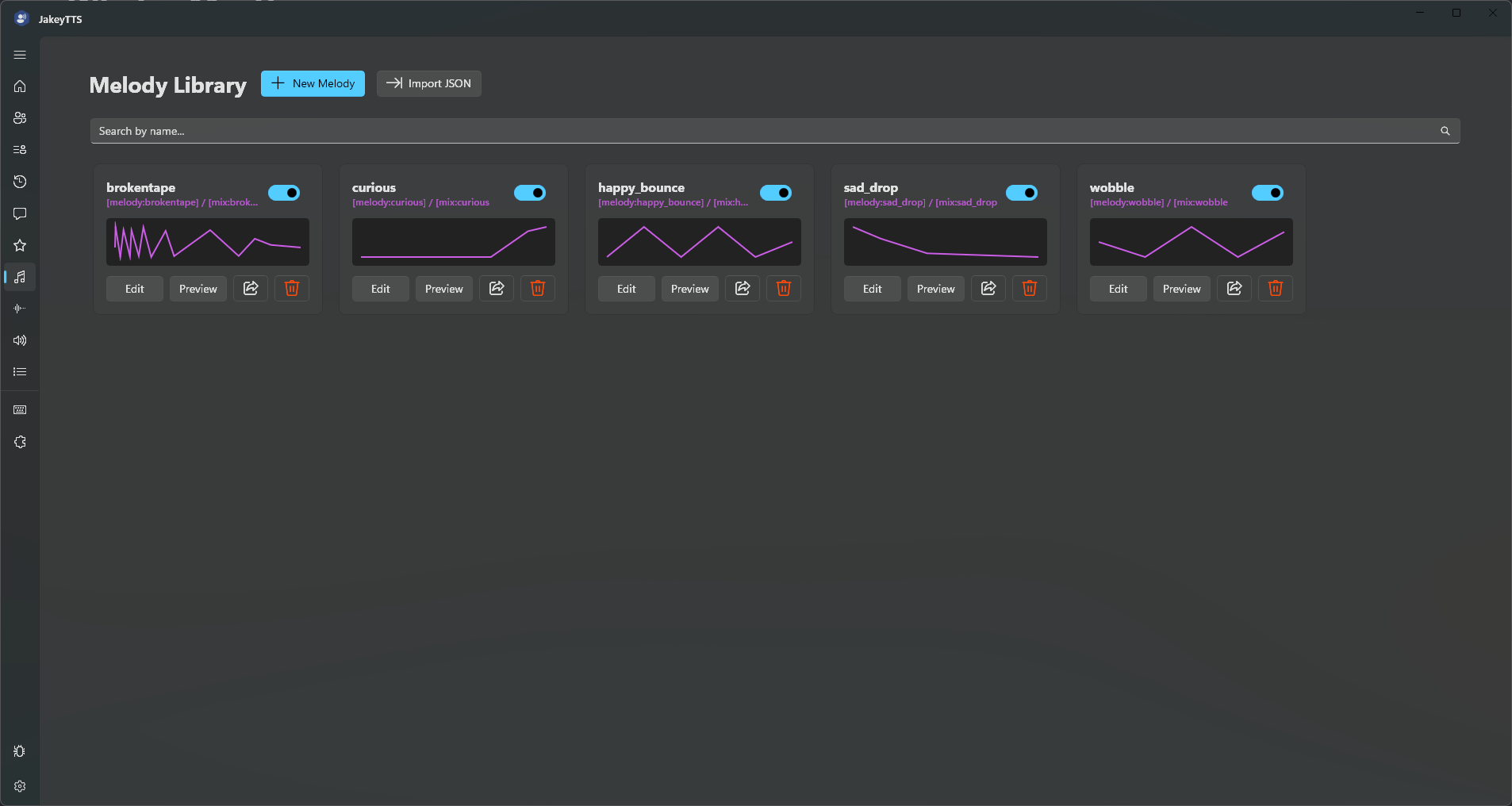 (The Melodies dashboard showing active profiles, toggle switches, and sharing options.)
Dashboard Options
- Create New Melody: Click the New Melody button at the top to open the visual editor with a blank slate.
- Toggle Switch: Instantly enable or disable a melody. Disabled melodies will fallback to standard speaking pitch.
- Play Preview: Click the play icon to hear a quick TTS simulation of the melody in action.
- Edit (Pencil Icon): Open the melody in the visual graph editor to refine its curves.
- Delete (Trash Icon): Permanently remove the melody.
3. Creating & Editing Melodies
Clicking Edit or creating a new melody opens the Melody Creator workspace, featuring a visual canvas editor and a precise points list.
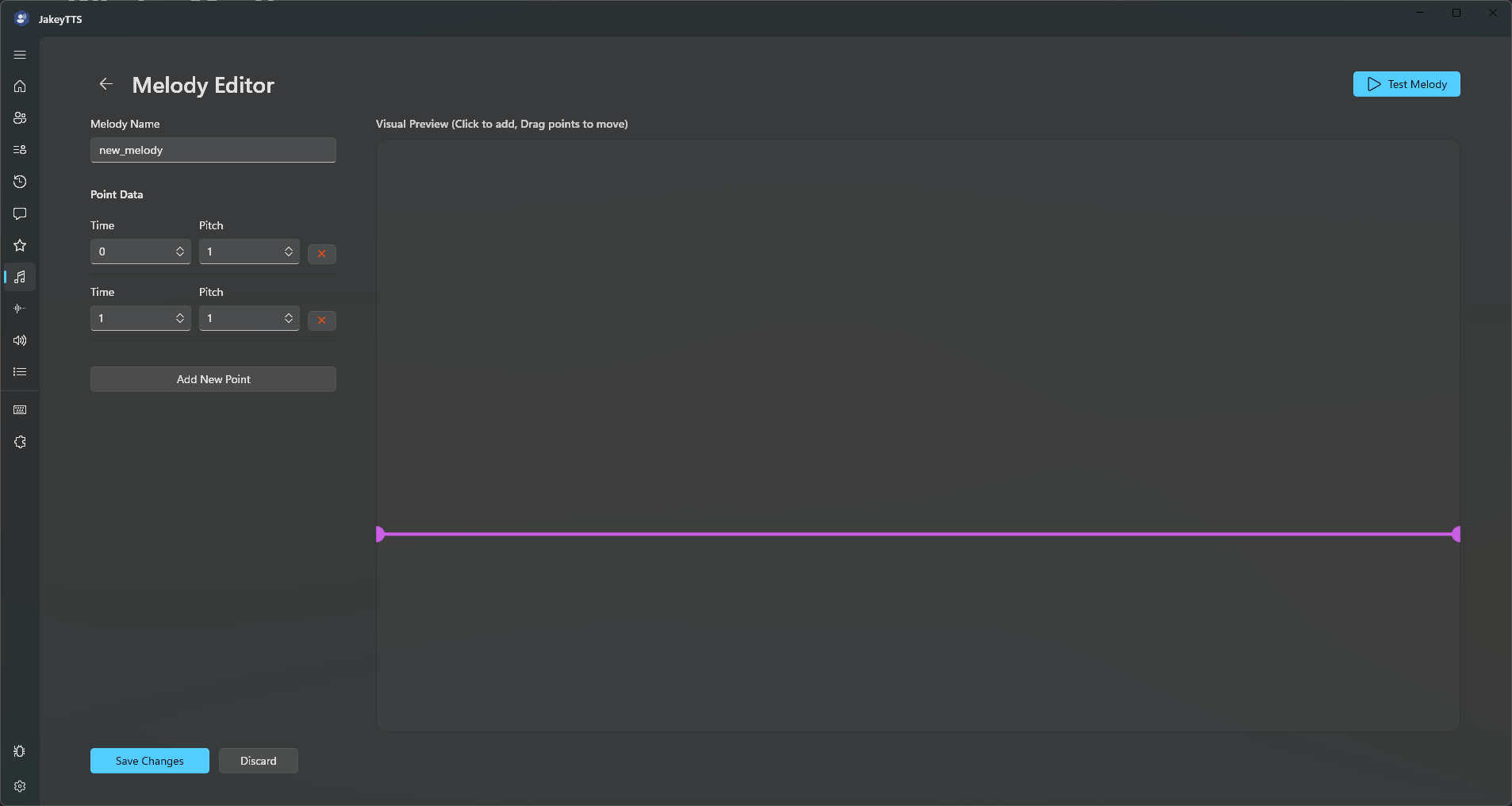 (The Melody Creator showing the interactive pitch/time graph editor and manual coordinates panel.)
You can define the melody’s pitch curve using two synchronized editing methods:
Method A: The Visual Graph Editor (Canvas)
- Move Points: Click and drag any purple dot on the canvas grid to adjust its position. Dragging horizontally changes the timing (
Time Pct), and dragging vertically changes the pitch (Pitch). - Add Points: Click anywhere on the empty canvas space to instantly create a new pitch control point.
- Smooth Interpolation: The editor automatically draws lines connecting your points, calculating a smooth linear transition between each pitch point.
Method B: The Points List
For pixel-perfect values, you can use the sidebar list next to the canvas:
- Manual Editing: Modify the exact numeric inputs for
Time Pct(0.0 to 1.0) andPitch(0.5 to 2.0). - Add Point: Click the Add Point button to place a new coordinate at default values (
Time Pct: 0.5,Pitch: 1.0). - Delete Point: Click the trash bin icon next to any coordinate row to remove it from the melody.
4. Importing & Sharing Melodies
Melodies are saved locally as .json files in the JakeyTTS database directory (AppData/Local/JakeyTTS/melodies/). You can easily export them to share with other streamers, or import files created by the community.
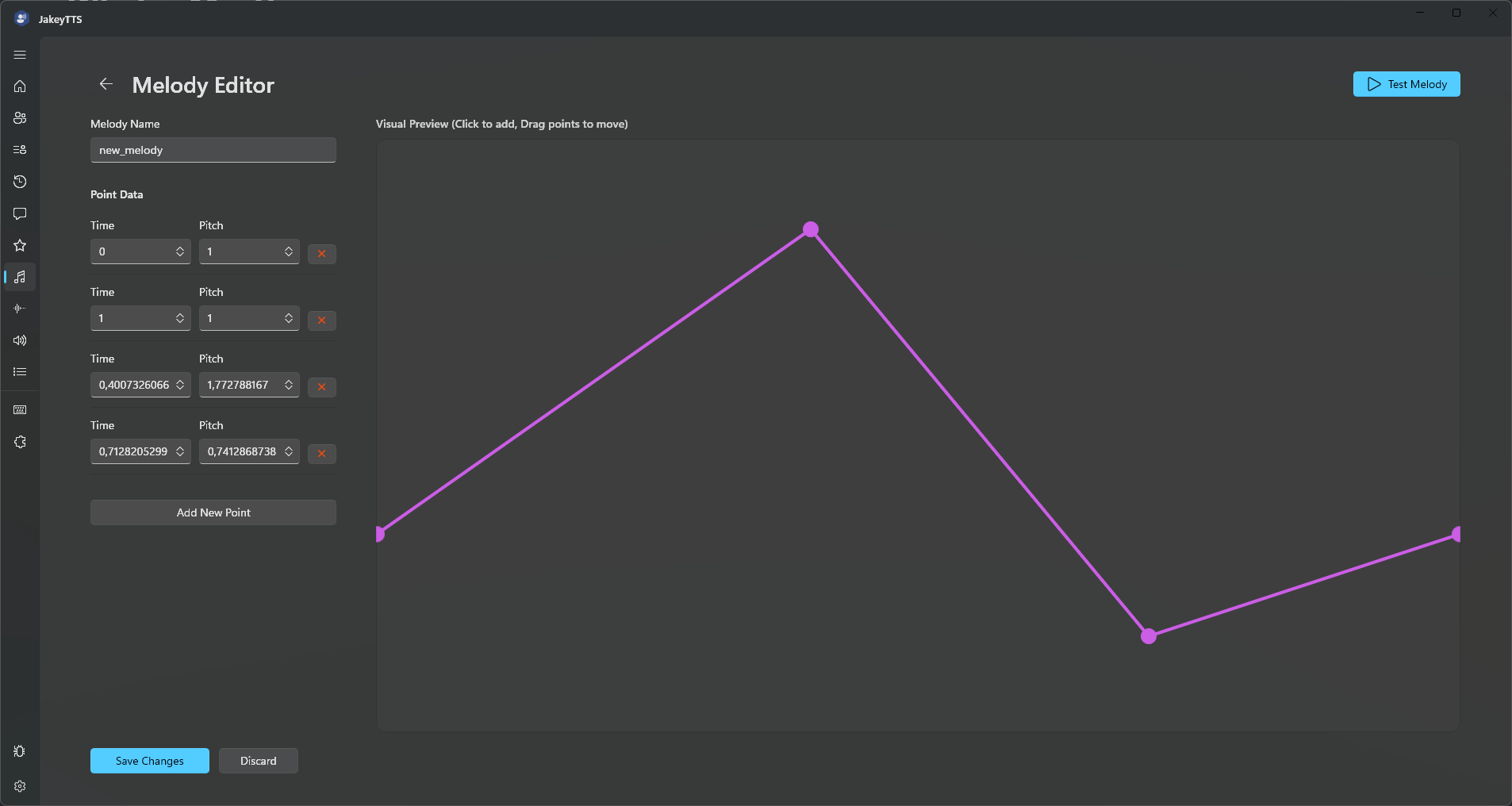 (Refining coordinate values and preparing a melody for export.)
How to Export
- Find the melody you want to share on the Melodies dashboard.
- Click the Export button on its card.
- Choose a folder on your PC to save the
.jsonfile.
How to Import
- Click the Import button at the top of the Melodies dashboard.
- Select the
.jsonmelody file you downloaded or received. - The melody will immediately appear in your list, ready to be previewed and used!