
Managing Plugins
All external plugins and integrations are managed directly inside the Plugins & Integrations page, accessible from the left sidebar of the JakeyTTS desktop application.
Initial State: No Plugins Found
When you start JakeyTTS for the first time, the client runs a local WebSocket server on ws://localhost:8889 but has no plugins registered. The page will display a “No Plugins Found” screen.
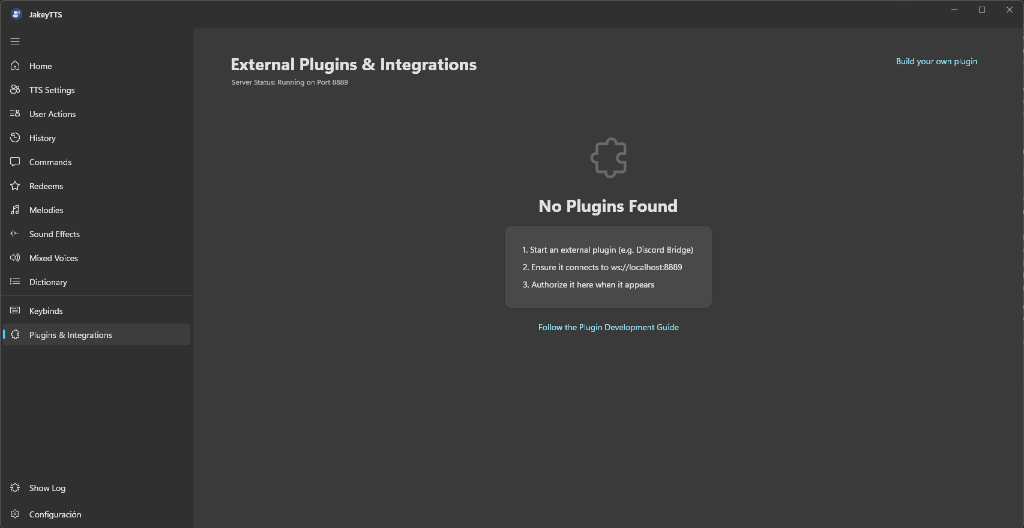 (Initial startup screen showing that the server is running on port 8889 and waiting for connection.)
How to Add a Plugin
To register and authorize a new plugin, follow these steps:
- Start the Plugin: Launch the executable, script, or service of the external integration (e.g., the Discord Voice Bridge or DiapStash Integration Bridge).
- Establish Connection: The plugin must connect to the local JakeyTTS server address:
ws://localhost:8889 - Authorize the Integration: Once the plugin establishes a connection, its card will instantly appear on the dashboard in a pending state. Click the Toggle Switch next to the plugin name to authorize and activate the integration.
[!NOTE] Active plugins automatically reconnect on subsequent app startups as long as their authorization toggle is enabled and the plugin is running.
Active State: Configured Plugins
Once plugins are connected and authorized, they will display as active modules on your dashboard.
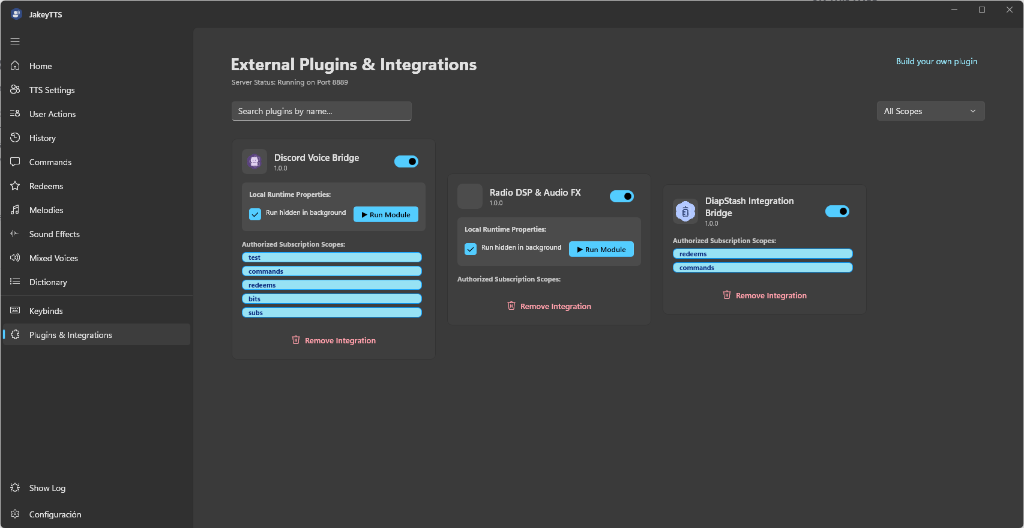 (Active dashboard displaying three configured plugins: Discord Voice Bridge, Radio DSP & Audio FX, and DiapStash Integration Bridge.)
Each active plugin card provides specific controls and status indicators depending on its integration type:
1. Connection Toggle
At the top-right of each card is a toggle switch. This allows you to quickly enable or disable the integration’s data subscriptions:
- Enabled (Blue): The plugin is authorized and receives system events.
- Disabled (Grey): The plugin remains registered but is temporarily blocked from receiving events or interacting with the client.
2. Integration Types
There are two main types of integrations, as illustrated by the active cards:
- Managed Local Modules (e.g., Discord Voice Bridge & Radio DSP & Audio FX):
These plugins run directly on your system and can be controlled by JakeyTTS. They feature a Local Runtime Properties section:
- Run hidden in background: When checked, the plugin process runs silently in the background without spawning terminal windows.
- Run Module: Click this button to manually spin up or restart the plugin binary process.
- Unmanaged / External Integrations (e.g., DiapStash Integration Bridge): These are external third-party services that connect remotely or from another process to the WebSocket server. Since JakeyTTS does not manage their execution lifecycle, they do not show local runtime controls.
3. Authorized Subscription Scopes
Plugins request access to specific subsets of the JakeyTTS API. These are displayed as blue tags under Authorized Subscription Scopes:
- Discord Voice Bridge: Subscribes to
test,commands,redeems,bits, andsubs. - DiapStash Integration Bridge: Subscribes to
redeemsandcommands. - Radio DSP & Audio FX: Exposes no API scopes (runs as a pure audio modulator).
[!IMPORTANT] A plugin can only listen to and trigger events for which it has authorized scopes. Ensure the scopes match the capabilities required by the plugin.
4. Removing an Integration
If you want to completely de-authorize a plugin:
- Click the red Remove Integration button at the bottom of the plugin’s card.
- Confirm the removal if prompted.
- This closes the socket connection, deletes the plugin configuration, and revokes its authorization token. To use it again, you will need to re-run the handshake process.