
Redeems
JakeyTTS features a seamless Twitch Channel Point Redeems integration, allowing streamers to link custom Twitch rewards to specific speech messages, chat responses, sound effects, or advanced action blocks.
[!IMPORTANT] Unlike standard chat commands, Twitch Redeems cannot be created or deleted directly inside the JakeyTTS interface. They must be created first on your Twitch Creator Dashboard (Twitch Panel).
1. Syncing Redeems from Twitch
To manage your Channel Point rewards in JakeyTTS:
- Go to your Twitch Creator Dashboard under Viewer Rewards > Channel Points > Manage Rewards & Challenges and create your custom rewards.
- In JakeyTTS, navigate to the Channel Point Redeems page.
- Click the Sync from Twitch button at the top of the dashboard.
- JakeyTTS will authenticate with your Twitch account and import all of your custom rewards.
- Use the IsEnabled toggle switch next to each redeem name to activate or deactivate the integration for that specific reward.
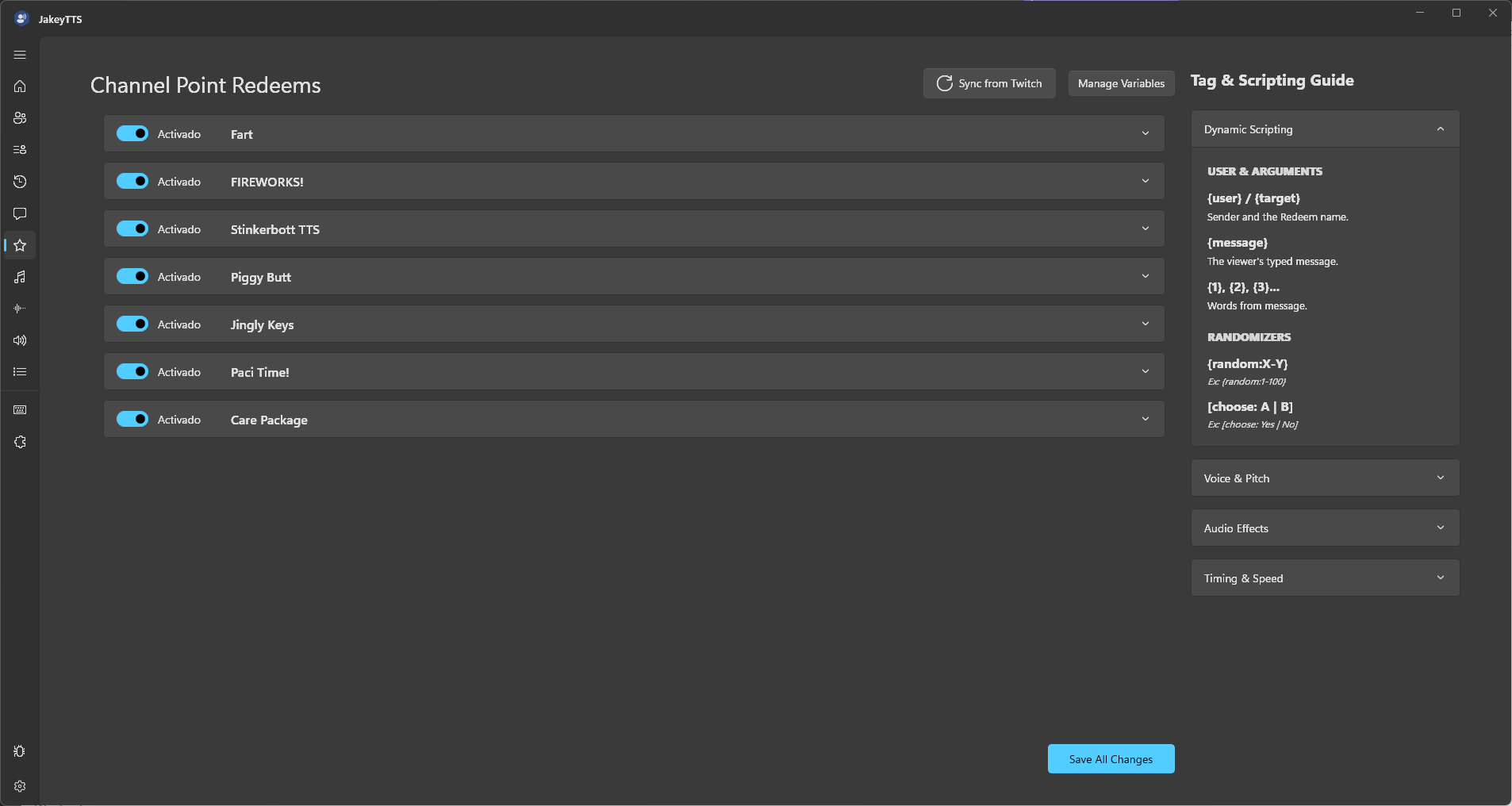 (The Channel Point Redeems dashboard showing imported Twitch rewards and configuration tools.)
- Sync from Twitch: Imports any new rewards created on Twitch.
- Manage Variables: Opens the global variable configuration panel.
- IsEnabled Toggle: Instantly enable/disable any reward from triggering TTS or actions.
- Save All Changes: Save and apply your configurations.
2. Standard Redeem Configuration
Click the dropdown arrow (v) on any redeem to expand its settings:
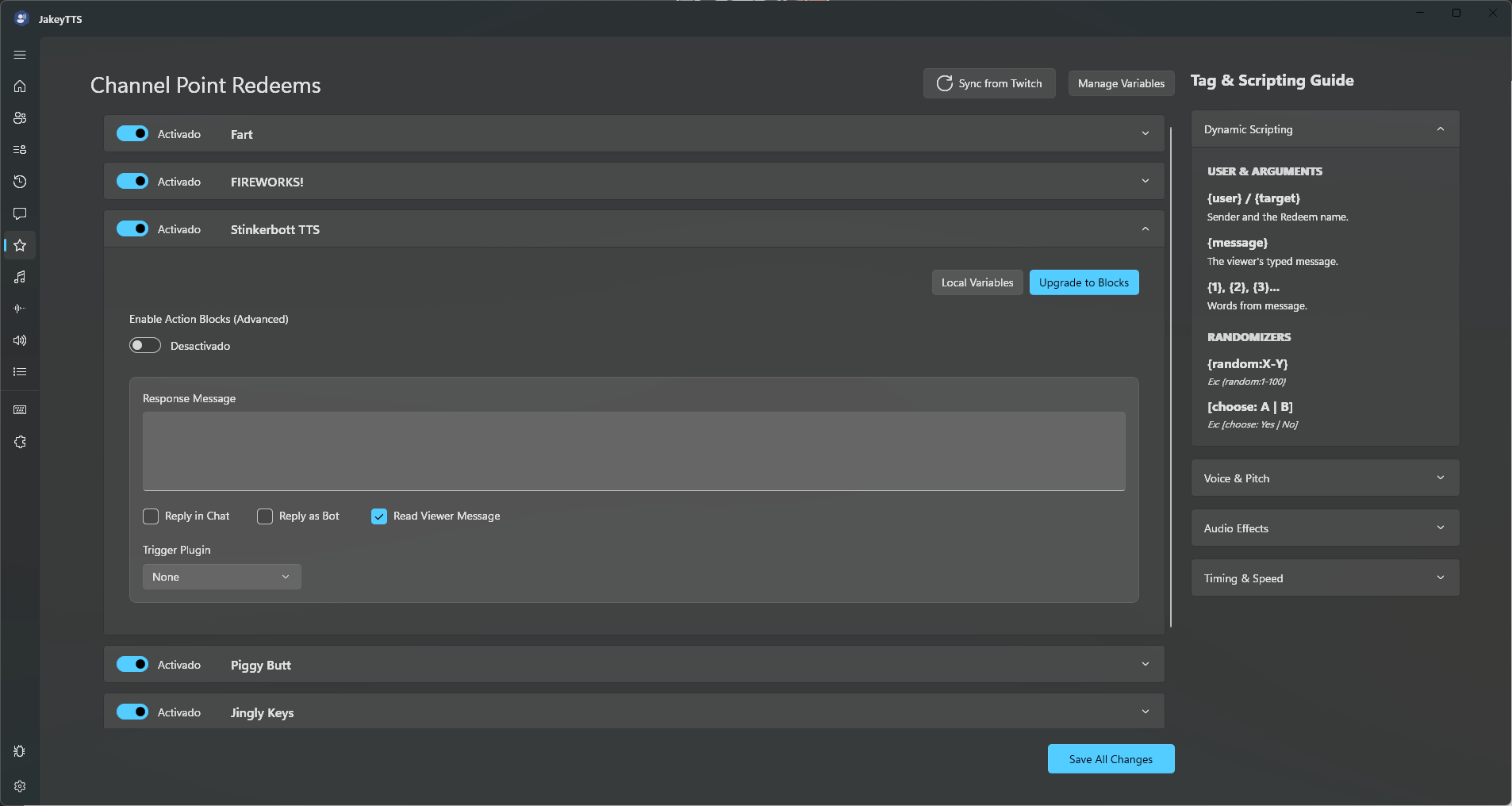 (Classic Redeem configuration showing standard speech responses and chat options.)
Fields & Controls:
- Response Message: The text template to be spoken or sent to chat when the reward is redeemed. You can use dynamic scripting tags here.
- Action Checkboxes:
- Reply in Chat: Sends the response text back to the Twitch chat.
- Reply as Bot: Sends the response using the linked bot account instead of the broadcaster account.
- Trigger Plugin: Link this redeem to run actions in an active plugin (e.g. Discord Voice Bridge).
3. Dynamic Variables & Scripting
Redeems support the same rich dynamic scripting tags, lists, random choice, and variable systems as commands, but with special variables tailored for redeems:
Redeem-Specific Tokens:
{target}: Evaluates to the exact name of the redeem (the custom reward name) that was triggered.{message}: Evaluates to the custom text message typed by the viewer when they redeemed the reward.[!NOTE] For
{message}to work, you must check “Require viewer to enter text” when configuring the reward on the Twitch Creator Dashboard.{user}: Evaluates to the display name of the Twitch viewer who redeemed the reward.
Common Scripting Tokens (Same as Commands):
- Lists: Use
{global:ListName:random}or{local:ListName:random}to pick a random item from a list. - Random Ranges: Use
{random:X-Y}to roll a random number (e.g.,{random:1-100}). - Choice Groups: Use
[choose: Option A | Option B]to pick randomly between pipe-separated options. - Variables: Reference scalar values via
{global:VariableName}or{local:VariableName}.
4. Advanced Action Blocks for Redeems
For more complex logic, toggle Enable Action Blocks (Advanced) or click the Upgrade to Blocks button. This unlocks sequential steps, custom delays, conditions, and variable updates.
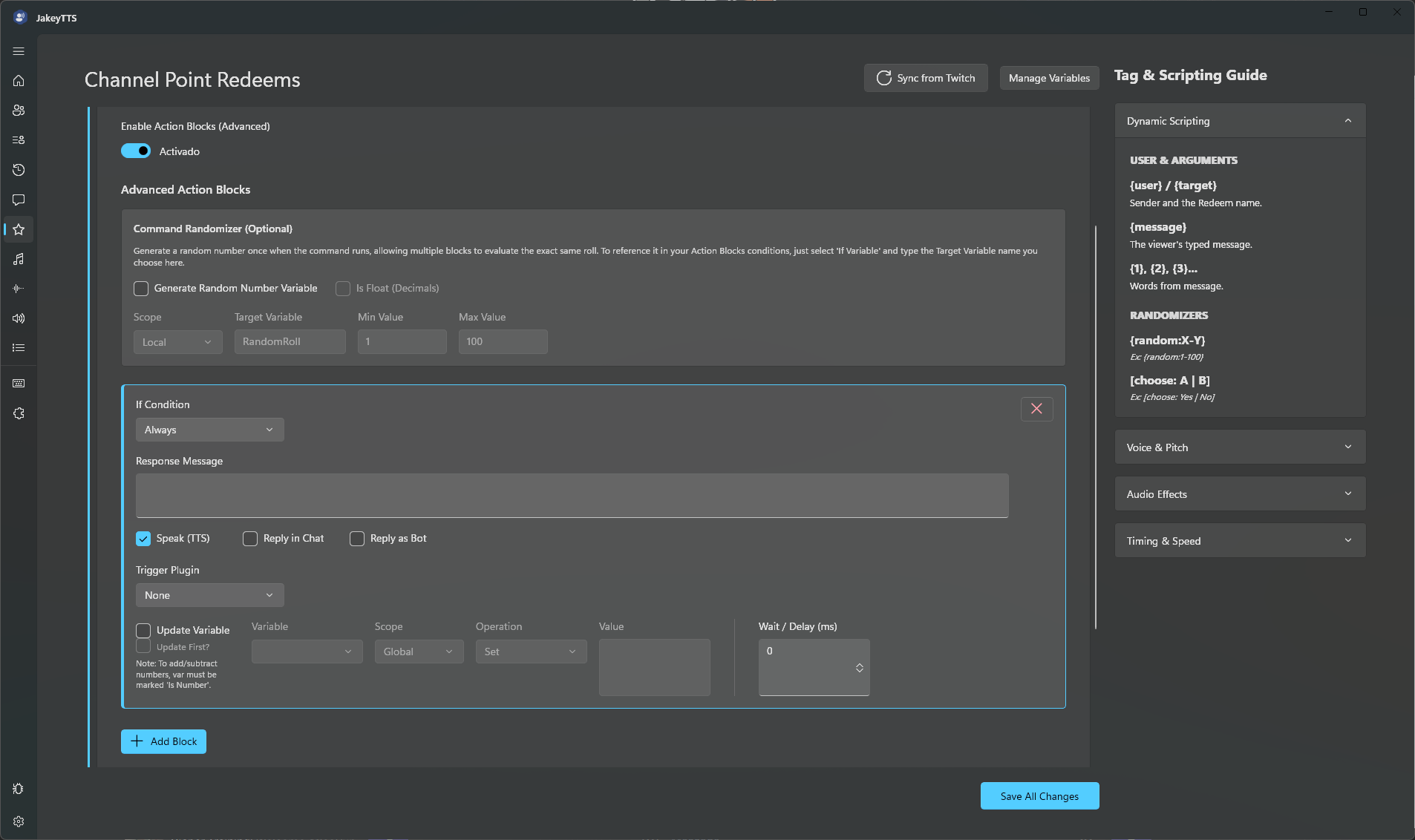 (Advanced Action Blocks configured for a channel point redeem.)
Key Features:
- Wait / Delay (ms): Add a pause before executing specific blocks.
- If Condition: Restrict blocks based on:
- Always: Always run.
- If User Provided Message: Runs only if the user entered text with their redemption.
- If No Message Provided: Runs only if the user did not provide text.
- If Variable Matches: Check variable comparisons (e.g.
==,!=,>,<,Contains). - If Variable List is Empty: Runs only if a list contains zero items.
- If Random Chance (%): Runs based on a success percentage.
- Update Variables: Modify numerical, text, or list variables on the fly before or after the speech response.